




How to Copy Table from Perplexity AI: A Step-by-Step Guide
Let’s face it—Perplexity AI is a fantastic tool, but figuring out how to copy a table from Perplexity AI can feel like a puzzle sometimes. Don’t sweat it—I’ll walk you through the exact steps so you’ll never struggle with this again. Whether working on a school project, a professional report, or just geeking out with AI tools, this guide will make your life much easier. Let’s dive in!
What Makes Perplexity AI Special?
For those of you who aren’t in the know, Perplexity AI is like the smart kid in class. It’s an advanced AI-powered search engine that uses natural language processing (NLP) and machine learning to give you lightning-fast, super-accurate results. Unlike Google, it doesn’t just list links—it structures data for you. One of its most astonishing tricks? Generating tables directly from your search queries.
But here’s the kicker: many people don’t know how to copy a table from Perplexity AI without messing up the formatting. That’s what we’re here for.
Step 1: Generate the Table
First, you must get Perplexity AI to make a table for you. Sounds obvious. But you’ve got to know how to ask.
1.1. Open Perplexity AI and type your query. Be specific and polite—AI loves manners (kidding, but seriously, clarity helps).Include phrases like:
- “Show this in a table format.”
- “Present this data as a table.”
- Example Query: “Generate a table 30-Day Off-Page SEO Post List with the keyword: perplexity ai”
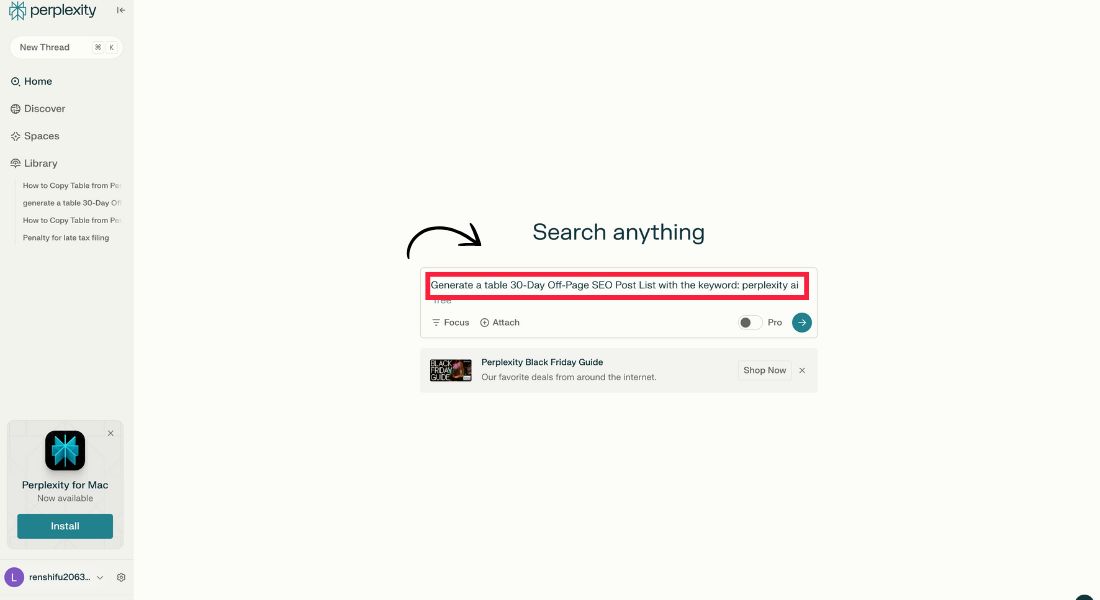
1.2. Hit Enter, and boom! You’ve got yourself a shiny, organized table.
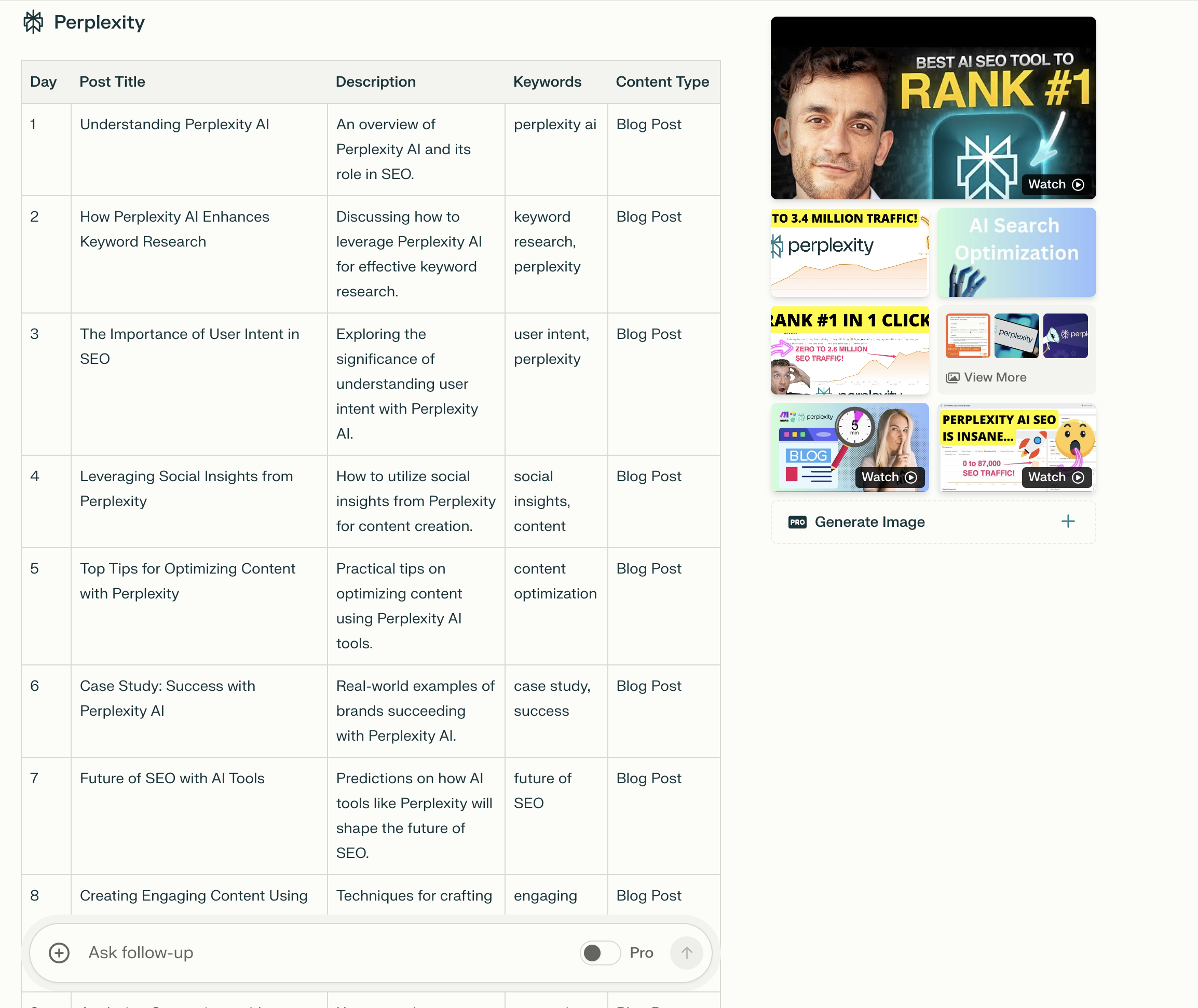
Step 2: Select the Table
Here’s where the action starts.
2.1. Move your mouse near the table's edge (an empty spot works best).
2.2. To highlight the entire table, click and drag. Ensure you have all the rows and columns—don’t leave anything behind!
2.3. Once highlighted, it should glow with excitement (okay, not really, but you get the point).
Step 3: Copy the Table
Now it’s time to grab that table and make it yours.
3.1. Use the classic shortcut: Press Ctrl+C (Windows) or Cmd+C (Mac). This copies the table to your clipboard.
3.2. Do you prefer the old-school way? Right-click the highlighted table and select “Copy.”
Pro Tip: If copying doesn’t work, try refreshing your browser or switching to another one (Chrome works like a charm!).
Step 4: Paste the Table
Alright, you’ve done the hard part. Now, let’s add that table to your document.
4.1. Open your preferred application: Word, Google Docs, Excel, or Google Sheets.
4.2. Place your cursor where you want the table to appear.
4.3. Press Ctrl+V (Windows) or Cmd+V (Mac) to paste it.
4.4. Done! The table should pop right into place, complete with formatting.
Troubleshooting Tip: If the table looks weird after pasting, check your paste options:
- “Keep Source Formatting” to keep the original look.
- “Match Destination Formatting” to match your document’s style.
How to Copy Table from Perplexity AI in HTML Format
Want to get fancy? You can copy the table as HTML. Here’s how:
- Generate your table using Perplexity AI as usual.Ask Perplexity to convert it into HTML:Type: “Please present this table in HTML format.”
- Copy Perplexity's HTML code (it’ll look like a bunch of tags and text).
- Paste the code into anywhere that supports HTML.
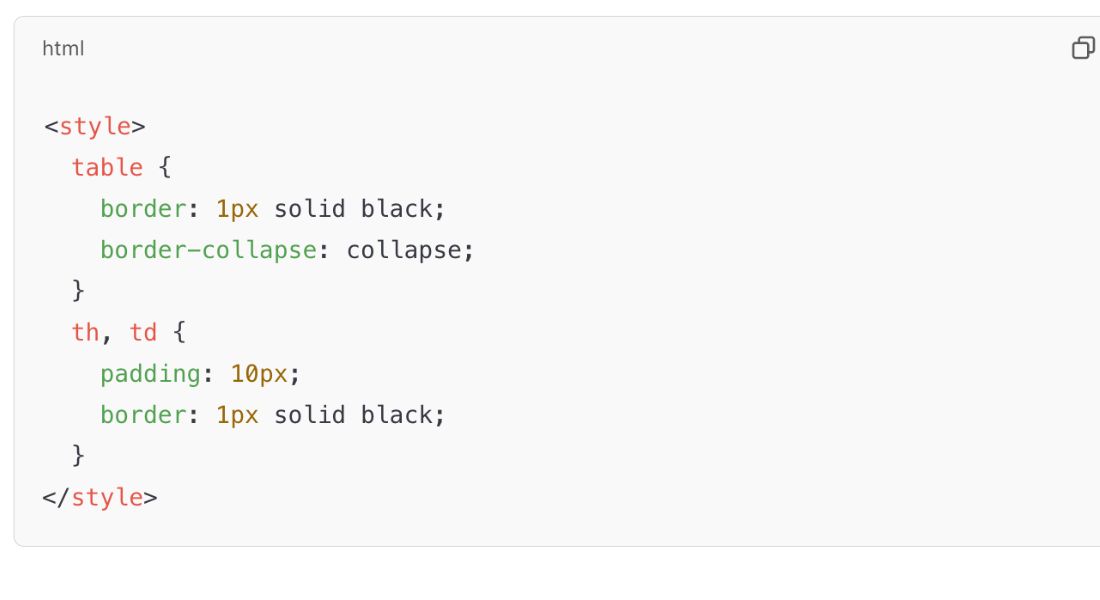
Pro Tip: Use simple CSS to make the table look sharp. Example:
<style>
table {
border: 1px solid black;
border-collapse: collapse;
}
th, td {
padding: 10px;
border: 1px solid black;
}
</style>
Troubleshooting: Common Issues
Even the best tools can throw a wrench in the works. Here are some quick fixes:
- Formatting Gone Wild: Use Excel or Google Sheets as a middleman to clean up formatting.
- Incomplete Tables: Break large tables into smaller sections before copying.
- Can’t Highlight the Table: Take a screenshot and use an OCR tool (like Google Drive) to extract the data.
FAQs: How to Copy Table from Perplexity AI
- Why can’t I copy the table from Perplexity AI directly?
Perplexity AI tables can sometimes be tricky to copy due to formatting or browser compatibility issues. Try using a different browser (like Chrome), refreshing the page, or using the HTML export option.
- Can I copy tables from Perplexity AI into Excel?
Yes! After copying the table, paste it directly into Excel. If the formatting looks off, use the “Paste Special” option in Excel to match the data formatting.
- What do I do if the table is too big to copy?
For large tables, copy them into sections. Alternatively, ask Perplexity AI to break down the data into smaller, more manageable parts.
- Can I customize the table after pasting it?
Absolutely! Once pasted into Word, Excel, or Google Docs, you can adjust the formatting, add colors, resize columns, and more to suit your needs.
- How do I convert the table to an image instead of text?
If you need the table as an image, take a screenshot of the table in Perplexity AI.
- Does Perplexity AI support exporting tables directly?
Not currently. However, you can use the HTML format option to generate and integrate a table’s code into your website or project.
- Are there alternatives to Perplexity AI for generating tables?
Tools like ChatGPT, Bing AI, or Google Bard can also generate tables based on structured prompts. Experiment with these platforms to see which one works best for your needs.
Have More Questions?
If we missed something, please drop your questions in the comments below. We’re here to help you master AI tutorials like a pro!
This FAQs section resolves common queries, builds trust, and adds more opportunities to include target keywords naturally. Let me know if you'd like any tweaks or additions!
Final Thoughts
Learning how to copy a table from Perplexity AI isn’t just a neat trick—it’s a must-have skill for anyone using AI tools. With these steps, you’ll never have to struggle again. So copy that data, make it your own, and impress your boss, teacher, or clients.
And hey, if you’re hungry for more AI tutorials, bookmark this site and stay tuned for more easy-to-follow guides. Happy table-copying, my friend! Are you looking to explore AI tools more? Check out our in-depth comparison: Jasper AI vs. Copy AI – Which Tool is Better for Your Writing Needs in 2024. It's a must-read for finding the perfect AI writing assistant!
